Browser Companion: Website Monitoring Without Switching Tabs
Browser Companion: Website Monitoring Without Switching Tabs
You're on a client website, checking an update or reviewing the design — and suddenly you wonder: "Wasn't there an alert last week?" Normally, you'd open a new tab, log into your monitoring tool, find the right website, and check the status. That might only take 30 seconds. But if you do it ten times a day, it adds up.
The pingport browser extension — the Browser Companion — solves exactly this problem. A website monitoring browser extension that shows you all relevant information right in the browser. No tab switching, no login, no searching. Just visit the website and know what's going on.
The Problem: Tab Switching Costs More Than Just Time
Every tab switch is an interruption. You lose context, your brain has to reorient, and by the time you have the information, you've forgotten what you were actually doing on the client website.
For agencies and freelancers who work with multiple client websites daily, this is a real productivity problem:
- Client review: You're walking the client through their website and want to quickly show the uptime status — switching to a dashboard tab looks unprofessional
- Maintenance round: You're working through 15 websites and have to jump between each site and your monitoring tool
- Quick check: A client asks "Is my site up right now?" and you have to find your dashboard first
- Deployment: You just deployed and want to see immediately if everything's running
The pingport Chrome extension website monitoring makes all of this unnecessary. The information comes to you — not the other way around.
What the Browser Companion Can Do
The Browser Companion is a lightweight browser extension that activates automatically when you visit a website that's registered in your pingport account. No manual triggering, no per-website configuration.
Overlay with All the Important Info
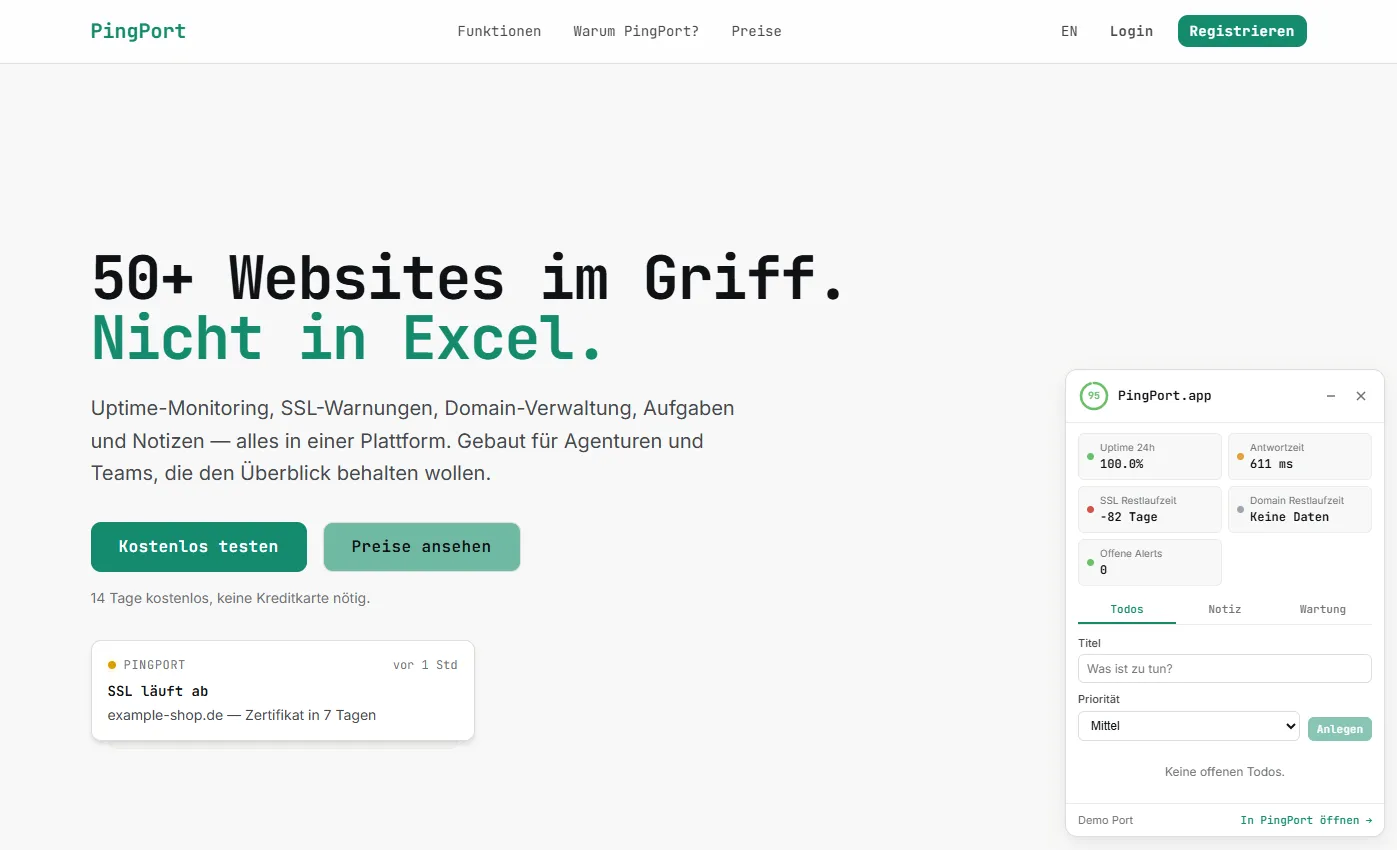
As soon as you visit one of your managed websites, a small overlay becomes available. One click on the pingport icon and you see:
Health Score (0-100) The aggregated health score of the website. Green (80-100), yellow (50-79), or red (0-49) — at a glance. No columns of numbers, no complicated dashboards. Just one number that tells you if everything's alright.
Uptime Status Is the website currently reachable? What's the current response time? What does the uptime for the last 24 hours and 7 days look like? Everything compact in one line.
SSL Certificate Valid until when? How many days left? Is there an active warning? Especially useful before client meetings: one glance is enough to make sure the certificate isn't expiring next week.
Active Alerts Open warnings are displayed directly in the overlay — with type, severity, and how long the alert has been active. So you never miss a critical notice, even if you overlooked the alert email.
Open Todos Which tasks are still pending for this website? Directly visible, no page switching. Perfect for maintenance rounds: open website, check todos, get them done, next website.
Quick Actions: Act Without Detours
The Browser Companion doesn't just show you information — you can take action directly:
Create a Todo You spot a broken link on the client website? Create a todo right from the overlay with a title and priority. It's automatically assigned to the correct website.
Add a Note You just showed the client something or noticed a problem? Write a note in the website's logbook. Right from the browser, without opening the dashboard.
Start a Maintenance Window About to deploy an update? Start a maintenance window with one click — 30 minutes, 1 hour, 2 hours, or 4 hours. No false alarms during maintenance.
Installation: Chrome, Firefox, Edge, Opera, and Brave
The browser extension agency teams and freelancers love is available for all major browsers:
- Google Chrome (and Chromium-based browsers)
- Mozilla Firefox
- Microsoft Edge
- Opera / Brave (via the Chrome Web Store)
Installation takes less than a minute:
- Visit the extension store for your browser
- Search for "pingport" or follow the direct link from your pingport settings
- Click "Add" / "Install"
- Done — the extension appears in your browser toolbar
Token Setup: Ready in 2 Minutes
After installation, you need to connect the Browser Companion to your pingport account once. This works through a personal API token:
Step 1: Generate a Token
- Open pingport.app and navigate to Settings
- Go to the "Browser Companion" or "API Tokens" section
- Click "Create New Token"
- Copy the generated token
Step 2: Enter the Token in the Extension
- Click the pingport icon in your browser toolbar
- The extension shows you an input field for the token
- Paste the copied token
- Click "Connect"
Step 3: Test It
- Visit a website that's registered in your pingport account
- The pingport icon should activate (colored dot or badge)
- Click the icon — you see the Health Score and all data
That's it. From now on, the extension automatically recognizes when you visit one of your managed websites.
Security Note
The token only has read access to your website data plus the ability to create todos and notes. It cannot delete websites, change settings, or read billing data. You can revoke the token at any time in your pingport settings.
What You See in the Overlay: The Complete Overview
Let's walk through the overlay in detail. When you click the pingport icon while visiting a managed website, you'll see the following sections:
Header: Health Score and Quick Status
At the very top is the Health Score as a large number with a color indicator. Next to it, the website name and current status (Active, Paused, In Maintenance). One glance is all you need for the most important information: Is everything running?
Uptime Section
- Current status: Online / Offline with response time
- Uptime 24h: Percentage for the last 24 hours
- Uptime 7d: Percentage for the last 7 days
- Last check: When the website was last checked
SSL Section
- Issuer: Let's Encrypt, DigiCert, etc.
- Valid until: Date and remaining days
- Status: OK / Warning / Critical (color-coded)
Alerts Section
A compact list of all open alerts with:
- Type: Downtime, SSL expiry, domain expiry, slow response time
- Severity: Info, warning, critical
- Since: Timestamp of the alert
Todos Section
The open todos for this website:
- Title and priority (color-coded)
- Due date (highlighted in red if overdue)
- Assigned to (your name or team member)
Quick Action Buttons
At the bottom of the overlay: three buttons for quick actions (todo, note, maintenance window) and a link "Open in Dashboard" for the full detail view.
When the Browser Companion Is Especially Useful
The extension is always handy — but in certain situations, it's a real game changer:
During Client Reviews
You're sitting with the client (or on a video call) going through the website. The client asks: "Were there any outages last week?" Instead of awkwardly opening the dashboard, you click the pingport icon and show the uptime data directly. Professional, fast, impressive.
During Maintenance Rounds
Every Monday, you go through your client websites. Before: open website, open dashboard, compare, take notes, next website. Now: open website, check overlay, complete or create a todo, next website. The workflow becomes linear instead of parallel.
During Deployment
You just deployed an update and want to see if everything's running. Instead of switching to the dashboard: start a maintenance window via the Browser Companion (before deployment), then check the status directly in the overlay after deployment.
During Troubleshooting
A client reports a problem. You open the website and want to know immediately: Is it the server (high response time)? The SSL? A known issue (open alert)? The overlay gives you the answer in seconds.
When Onboarding New Client Websites
You just added a new client website to pingport. Now you visit the site in the browser and immediately see if monitoring is running and the first data is coming in. No separate check needed.
Performance and Privacy
A fair question: Does the extension slow down the browser? Short answer: No.
Minimal Resource Usage
The Browser Companion only makes an API call when you visit a managed website. There's no permanent polling, no background synchronization, no trackers. The extension simply checks whether the current URL matches one of your websites — and only then loads data.
Privacy
- The extension only sends the current URL to the pingport API to check if it's a managed website
- No browsing data is stored or forwarded
- No tracking pixels, no analytics tools, no third-party code
- The token is stored locally in the browser and only used for API calls
- You can disable or uninstall the extension at any time
Browser Companion vs. Dashboard: Not Either-Or
The Browser Companion doesn't replace the pingport dashboard — it complements it. For quick checks, maintenance rounds, or client meetings, the Companion is perfect. For deep analysis, portfolio reports, or billing settings, you'll still use the dashboard.
| Feature | Browser Companion | Dashboard |
|---|---|---|
| Health Score | Yes | Yes |
| Uptime status | Yes | Yes (with chart) |
| SSL status | Yes | Yes (with history) |
| View alerts | Yes | Yes (with details) |
| View todos | Yes | Yes (with filters) |
| Create todo | Yes | Yes |
| Create note | Yes | Yes |
| Start maintenance window | Yes | Yes (with options) |
| Portfolio overview | No | Yes |
| Uptime charts | No | Yes |
| Settings | No | Yes |
| Billing | No | Yes |
The combination of both is the optimal workflow: Browser Companion for everyday work, dashboard for in-depth analysis.
Tips for Getting the Most Out of It
Tip 1: Set Up a Keyboard Shortcut
Most browsers let you assign a keyboard shortcut to extensions. Set up a shortcut (e.g., Ctrl+Shift+P or Alt+P) to open the overlay instantly without having to click the icon first.
Tip 2: Use It During Maintenance Rounds
Open all client websites in separate tabs and go through them one by one. With the Browser Companion, you immediately see the status of each website without jumping back and forth between tabs.
Tip 3: Before Every Deployment
Make it a habit to start a maintenance window via the Browser Companion before every deployment. This way, you avoid false alarms and your alert inbox stays clean.
Tip 4: Capture Todos Immediately
Whenever you notice something — a broken image, a slow page load, a missing alt tag — create a todo via the Browser Companion right away. You won't remember it later.
Frequently Asked Questions About the Browser Companion
Does the Companion work with all websites? The Companion only shows data for websites registered in your pingport account. On other websites, the extension stays inactive.
Can I connect multiple pingport accounts? Currently, the Companion supports one account/token at a time. You can switch the token at any time, though.
What happens when I'm offline? The extension shows the last loaded data (cached). New data is fetched as soon as you're back online.
Does the Companion work on mobile? Browser extensions aren't available on mobile browsers, unfortunately. For mobile checks, use the pingport dashboard in your browser — it's fully responsive.
Does the extension use a lot of memory? No. The Browser Companion is very lightweight. It only loads data on demand and doesn't maintain a large in-memory cache.
Bottom Line: Website Status in the Browser — No Detours
The pingport Browser Companion is for everyone who works with multiple websites daily and doesn't want to keep switching tabs. As a website monitoring browser extension, it shows you exactly what you need — Health Score, alerts, todos, quick actions — right where you already are: in the browser, on the website.
Installation takes one minute, token setup takes two minutes. After that, you save a little time every day. And over weeks and months? It adds up.
Install now: Download the pingport Browser Companion from your browser's extension store or find the direct link in your pingport settings. Don't have a pingport account yet? Start for free with up to 5 websites.